Growth Engine for Windows

Stream. We'll make the clips.

Growth Engine watches your Twitch stream and turns kills, big reactions and chat moments into vertical clips with captions and headlines, ready for TikTok, YouTube Shorts and Reels.

Works with OBS, Streamlabs, Meld, PS5 and Xbox. No paid AI required.

Your stream, clipped

How it works

From live stream to posted clip

Set it up once in about five minutes. After that it runs while you play.

Go live

Stream to Twitch the way you always do, from a PC or a console.

It spots the moments

Kills in the kill feed, your loudest reactions and chat going wild each become clip candidates.

Clips are made for you

Vertical 9:16 video with your camera, captions, a headline and your handles.

Review and post

Approve with one key, trim on a timeline, and post to TikTok, Shorts and Reels.

Features

Everything a clipping workflow needs

🎯

Catches the right moments

Reads your name in the kill feed, hears your reactions, and watches chat for spikes. It knows menus and pause screens aren't highlights.

💬

Captions on your PC

Speech-to-text runs locally for free, timed to what you actually say, with an optional swear-word filter.

📰

Headlines that hook

A local AI model suggests a headline for each clip. You can edit it and see it on the video before rendering.

🎨

Looks that fit you

Circle camera with game art, camera on top, or a console layout with no camera, plus your colours and platform badges.

✂️

Fast review

Drag-to-trim timeline, keyboard shortcuts, and a summary waiting for you after every stream.

🛡️

Never slows your stream

Heavy work waits until you stop streaming and runs at the lowest priority, so your game and stream keep full speed.

Inside the app

Simple to use

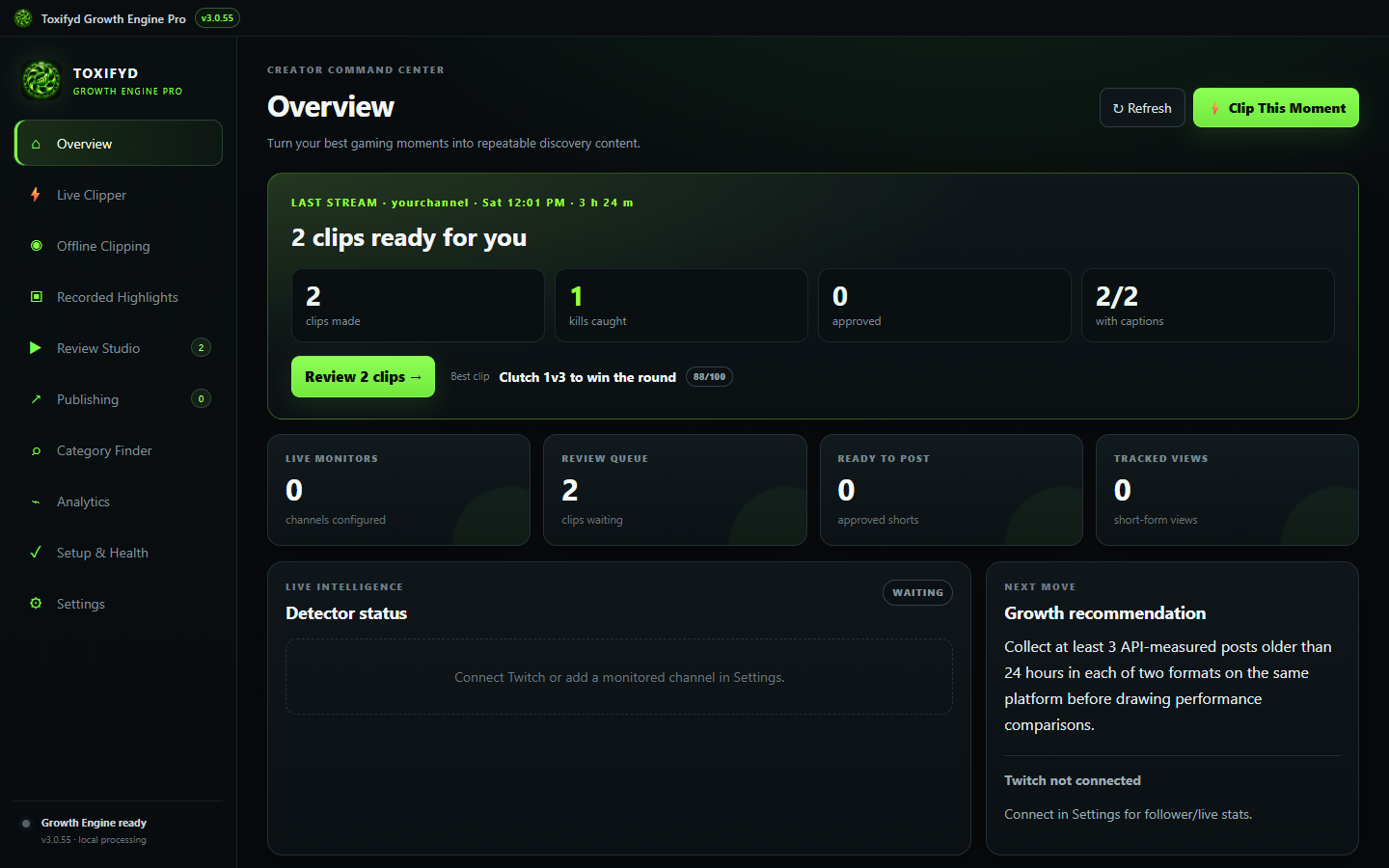
Growth Engine overview after a stream
After every stream: clips made, kills caught, and one button to review them.
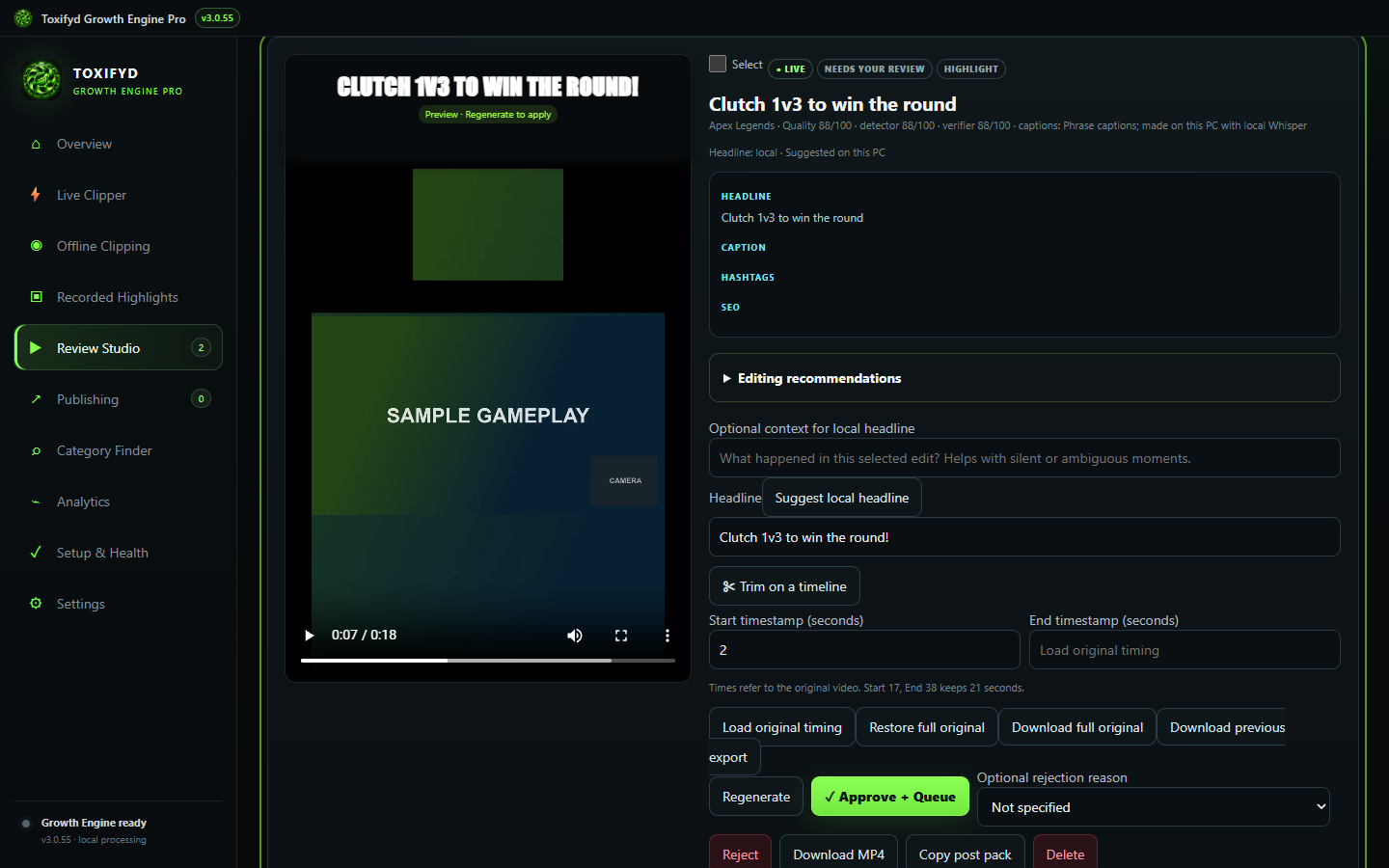
Reviewing a clip with the timeline trim and headline preview
Trim on a timeline and preview your headline before you render.
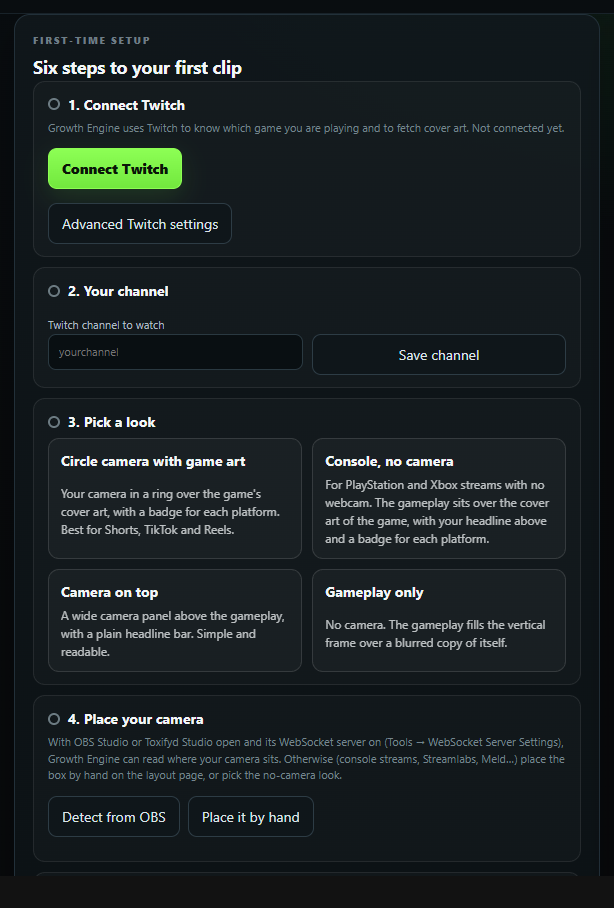
Setup checklist
A short setup checklist: connect Twitch with one code, pick a look, done.
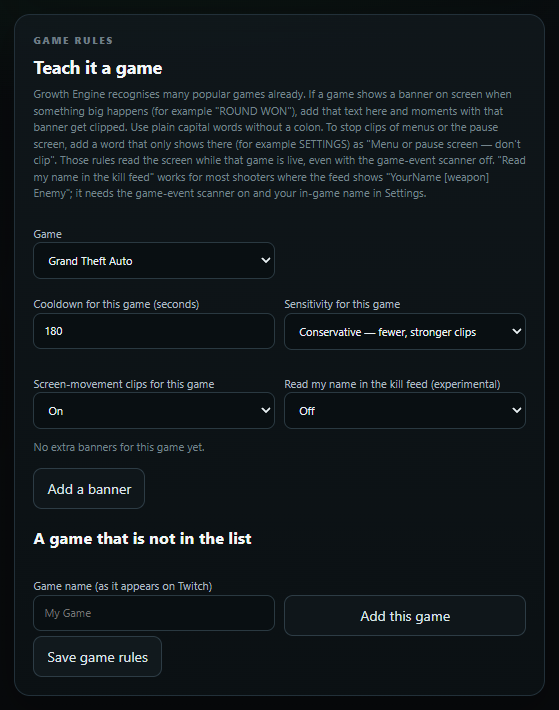
Per-game rules
Tune each game: cooldown, sensitivity, menu screens to skip, and kill-feed reading.

Works with your setup

Any way you stream to Twitch

Growth Engine clips from your Twitch stream itself, so it works whatever you stream with. OBS users also get automatic camera detection.

OBS StudioStreamlabsMeld StudioPlayStation 5XboxAny Twitch stream

Growth Engine

Price coming soon

One license, instant download.

  • Automatic clips from every stream
  • Free captions and headlines on your PC
  • All layouts, game art and badges
  • Works with any streaming setup
Buy Growth Engine

Secure checkout by Lemon Squeezy. Taxes handled for you.

Requirements

What you need

ComputerWindows 10 or 11 (64-bit)
Memory8 GB RAM minimum. 16 GB recommended if you use local headlines.
Disk spaceAbout 2 GB for the app, plus 0.6 GB for local captions (6.1 GB with local headlines), plus room for your clips.
GraphicsNot required. An NVIDIA GPU makes rendering faster when you are not streaming.
StreamingA Twitch account. Stream from any software or console.
InternetNeeded to watch your stream and for the one-time model download. Captions and headlines then run offline.

Questions

FAQ

Do I need to pay for OpenAI or any other AI service?

No. Captions and headlines run on your own PC for free. If you already have an OpenAI key you can use it, but you never need one.

Will it slow down my game or my stream?

No. During a stream it only watches and saves clips. Captions, headlines and re-rendering wait until you stop streaming, and run at the lowest Windows priority.

I stream from a PS5 or Xbox. Does it work?

Yes. Growth Engine clips from your Twitch stream itself, so console streams work. Use the "game art, no camera" look for a clean result.

Which games does it detect kills in?

WarDogs has a dedicated kill reader. For many other shooters you can switch on reading your name in the kill feed per game (experimental). It also clips big voice reactions and chat spikes in any game. You can teach it on-screen banners like "VICTORY" for any game too.

Does it post to TikTok, YouTube and Instagram for me?

It prepares everything: the vertical video, headline, caption and hashtags, plus posting reminders. Uploading is a quick manual step, because those platforms limit automatic posting.

Windows showed a blue "Windows protected your PC" warning. Is that safe?

That message appears for new apps that Windows has not seen much yet. Click More info, then Run anyway. The installer comes directly from this site.

Where are my clips stored?

On your own PC. Nothing is uploaded unless you choose to connect an account or post a clip.